Repeater Web Panel
This page is for end users running an EastMesh *_repeater_observer build with the local web panel enabled.
It covers how to reach the panel, what each section does, and what to expect when using it on desktop or mobile.
Start Here
For normal first-time use:
- Connect the repeater to Wi-Fi.
- Run
get wifi.statusto find its IP address. - Open
https://<repeater-ip>/in a browser. - Accept the self-signed certificate warning.
- Log in with the repeater admin password.
- Use the panel for setup or troubleshooting.
- When finished, use
set web offif the repeater needs maximum MQTT headroom.
Most users only need the panel for first setup, occasional setting changes, and troubleshooting. Leave it enabled only when browser access is worth the extra memory use.
What It Is
The repeater web panel is a local HTTPS configuration page served directly by the repeater over Wi-Fi.
It gives you:
- a password-gated local admin page at
/app - a dedicated stats and trends page at
/stats - quick
getcommands for common repeater and MQTT checks - a terminal-style CLI panel for full repeater CLI access
- editable repeater settings
- editable MQTT settings
- a historical stats view with trends, neighbours, and recent events
Operational guidance:
- use it for initial setup, occasional configuration changes, and troubleshooting
- when you are finished, prefer
set web offon observers that need maximum headroom - this leaves more internal heap available for MQTT/WSS activity, especially on dual-broker setups
Common Tasks
Check Wi-Fi And MQTT
- Open the panel.
- Press
wifi.statusin QuickgetCommands. - Press
mqtt.statusin QuickgetCommands. - Open
/statsfrom the top navigation for the historical stats view.
Change Device Name
- Edit
Device Name. - Press
Save. - Confirm the generated command and reply in the CLI terminal box.
Update MQTT Owner Or Email
- Go to
MQTT Settings. - Enter the new value.
- Press
Save. - Use the refresh button if you want to re-read the stored value from the repeater.
Screenshot Overview
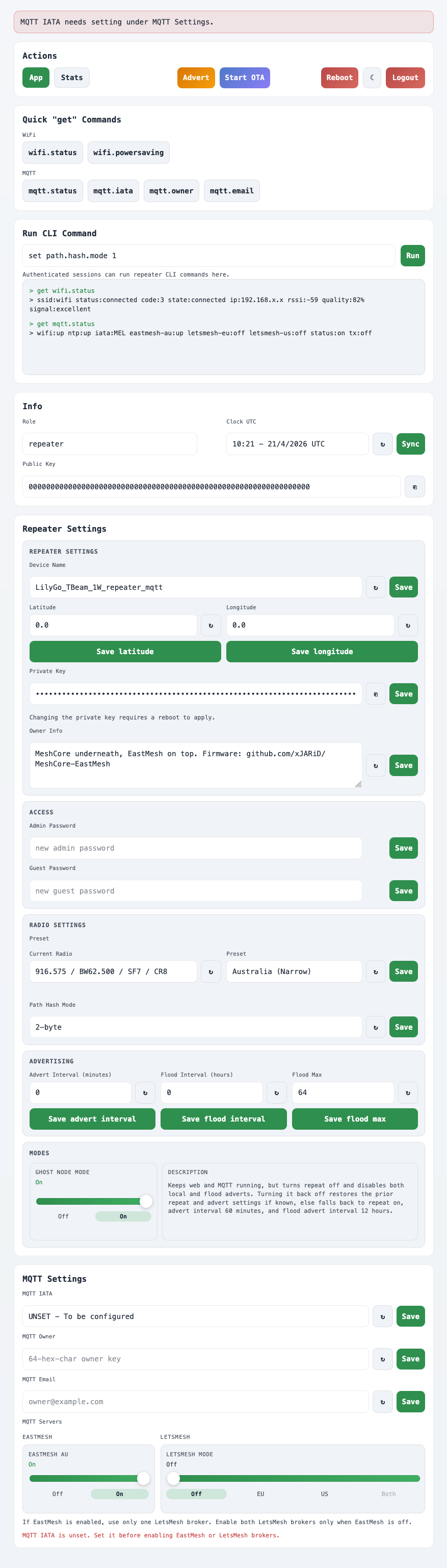
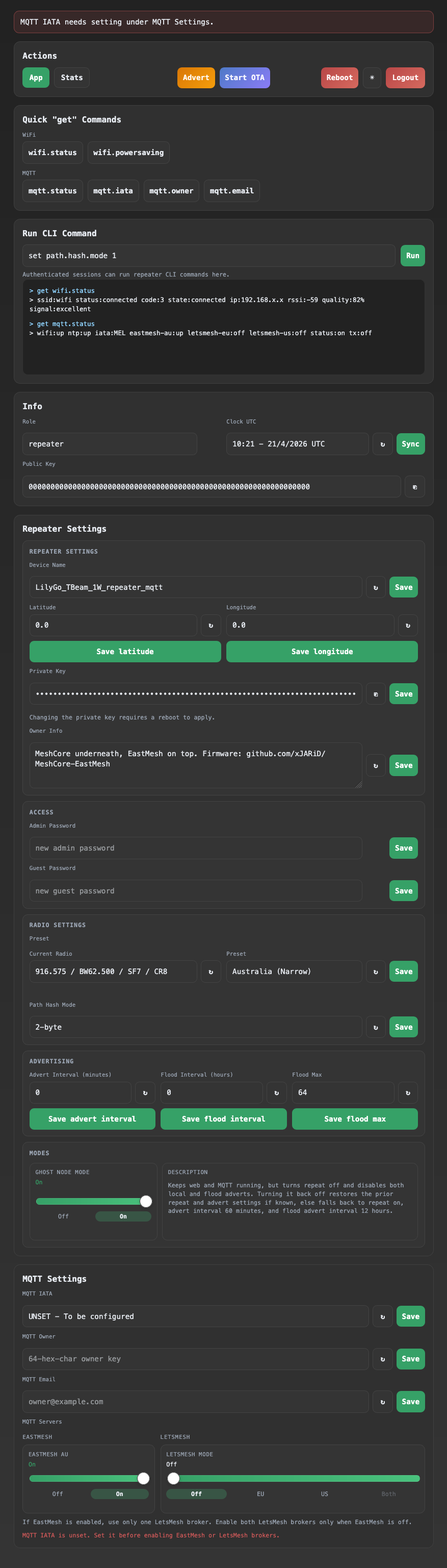
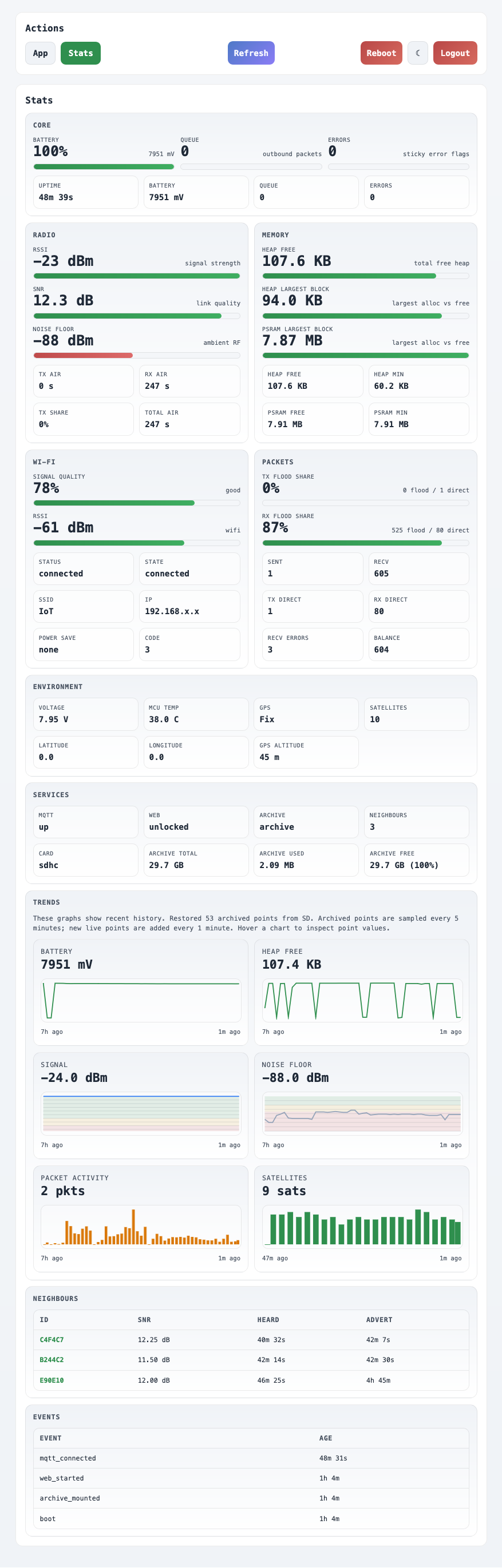
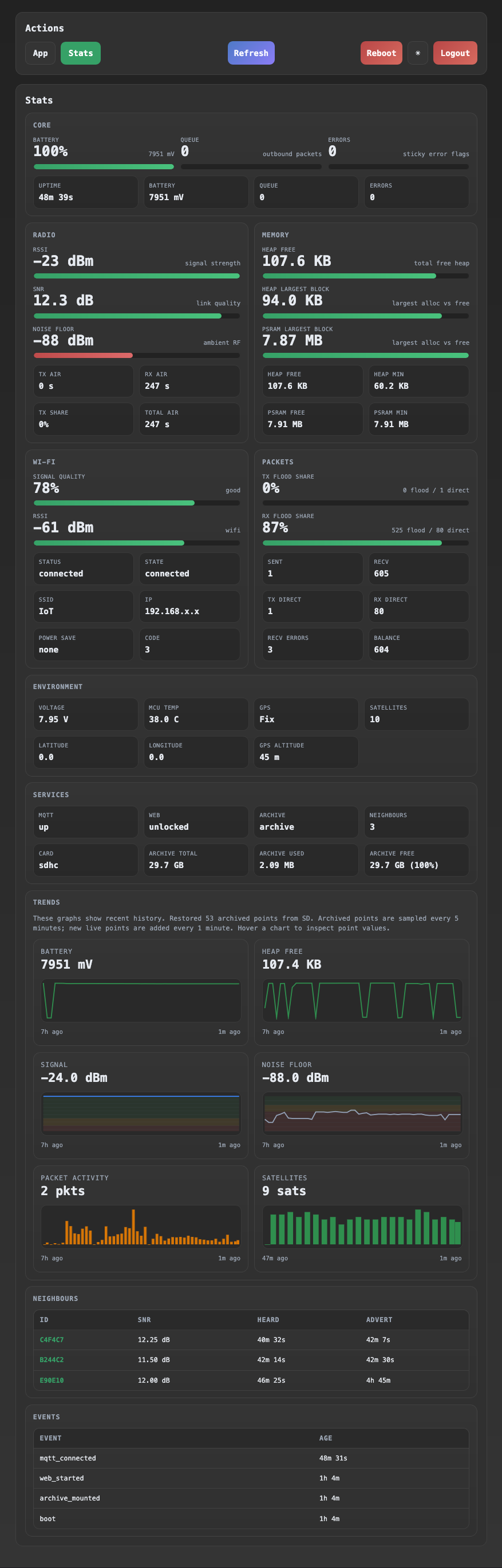
The screenshots below show the current split between the lighter /app admin page and the dedicated /stats status page.
/app screenshot
/stats screenshot
Requirements
You need:
- a supported
*_repeater_observerfirmware build - Wi-Fi configured on the repeater
- the repeater connected to your local network
- the repeater admin password
Some constrained targets disable the web panel to stay within flash limits. If your board does not support it, get web.status will not show it as available.
How To Open It
- Connect the repeater to Wi-Fi.
- Find its IP address.
- Open
https://<repeater-ip>/in a browser. - Accept the browser warning for the self-signed certificate.
- Enter the repeater admin password.
Useful CLI commands:
get wifi.status: shows Wi-Fi state, IP address, channel, and signal when connected.get web.status: shows whether the web panel is up and which URL to use.
Example:
https://10.33.135.208/
Login And Security
- the panel uses the same admin password as the repeater CLI
- the connection is HTTPS, but the certificate is self-signed
- browsers will warn the first time you connect
- the panel exposes the repeater CLI after login
- the browser keeps the session token while changing between
/appand/stats; the page switches views in place until logout, idle lock, or device restart - brief Wi-Fi drops can interrupt in-flight page loads, but should not force a new login when the web panel restarts
- after a device restart or reflash, the app checks the stored token before loading settings and returns to login if the session is stale
This is intended for local admin use on a trusted network, not for open internet exposure.
Performance Notes
The panel is designed to load more gently than earlier versions. On login it now fetches sections in sequence instead of requesting one large bootstrap payload up front.
Even with that change, the panel still uses HTTPS and internal heap. On boards running one or two WSS MQTT brokers, opening the panel reduces MQTT headroom while the session is active.
Recommended practice for repeater deployments:
- enable the panel for initial configuration
- use it again for occasional checks or troubleshooting
- disable it with
set web offwhen finished so MQTT has the most headroom available
Navigation And Actions
The web console now has two main pages:
/app: lighter-weight control and configuration view/stats: current status, trends, neighbours, and recent events
Both pages share the same top navigation and utility actions.
/app
The /app page is the main admin and configuration surface.
It includes:
- navigation to
AppandStats AdvertStart OTAReboot- theme toggle
Logout
Use Start OTA only when you intend to update firmware.
If the browser can reach the EastMesh flasher firmware manifest, the app page checks the EastMesh release version from mqtt.client_version against published MeshCore-EastMesh releases. When a newer EastMesh release tag is available, a firmware update notice appears at the top of the page.
For builds that include CLIENT_ENV, the notice can show Update now. This downloads the matching non-merged .bin from the EastMesh flasher firmware mirror, shows progress in the banner, uploads the firmware through the HTTPS web panel, and lets the device reboot. This requires CORS headers on the flasher /firmwares/ paths.
/stats
The /stats page is the home for current status and historical visibility.
It includes:
- navigation to
AppandStats RefreshReboot- theme toggle
Logout
Quick "get" Commands
This section runs common read-only commands for:
- Wi-Fi
- MQTT
These are useful for quick checks without typing into the CLI field. The MQTT quick actions include mqtt.status, mqtt.client_version, mqtt.iata, mqtt.owner, and mqtt.email.
Run CLI Command
This is a small terminal for the repeater CLI.
- press
Enterto run the command - command history is shown in the terminal box below
- save buttons elsewhere in the page also show the generated command and the reply here
clockis available here if you want to check the repeater's current board time- authenticated sessions can run the same CLI commands accepted by the repeater
This makes it easy to see exactly what the panel sent to the repeater.
Repeater Settings
This section includes:
- Device Name
- Clock UTC
- Latitude
- Longitude
- Guest Password
- Private Key
- Advert Interval
- Flood Interval
- Scoped Flood Max
- Unscoped Flood Max
- Owner Info
Notes:
LatitudeandLongitudedefault to0.0as placeholders- changing the private key requires a reboot to apply
- the refresh buttons load the current value from the repeater
- the save buttons send the matching CLI command immediately
Radio Settings And Regions
The Radio Settings section includes the community radio preset selector, path hash mode, and a Region (Australia) dropdown derived from the state groups used by the MQTT IATA selector. The dropdown is preselected only when the repeater already has a matching allowed au-STATE region. Pressing the region Save button creates and allows the base au region plus the selected state region, then persists the region map with region save.
Info
This section shows:
Version: firmware version with build dateClient Version: MQTT client version stringPublic Key
Ghost Node Mode
Ghost Node Mode is a convenience control on /app for a repeater that should stay on Wi-Fi and MQTT, but should not actively behave like another nearby repeater.
Typical use case:
- an indoor or colocated MQTT observer where another repeater nearby is already doing the RF relay work
- a node you want feeding MQTT, web status, and troubleshooting data without also adding extra repeat traffic or adverts
When enabled, Ghost Node Mode:
- turns
repeatoff - sets
advert.intervalto0 - sets
flood.advert.intervalto0 - leaves the local web panel and MQTT features running
When disabled, the panel restores the prior repeat and advert settings if it still knows them from the current browser session. If not, it falls back to:
repeat onadvert.interval 60flood.advert.interval 12
This mode is useful when you want the device to observe and publish, not to act as an additional RF repeater. It does not create a separate firmware role; it is just a grouped web-panel shortcut for those existing settings.
MQTT Settings
This section includes:
mqtt.iata: selected from a curated east-coast/south-east list.mqtt.owner: owner public key.mqtt.email: owner contact email.- MQTT brokers: Primary MQTT and Secondary MQTT dropdowns, each selecting one of
eastmesh-au,meshmapper,Custom, the retiredletsmesh-eu/letsmesh-us, orNone. The two slots enforce the two-broker maximum, and a broker chosen in one slot is disabled in the other. - custom MQTT
host:port, TCP/WSS transport, username, and password fields, shown whenCustomis selected in either slot.
UNSET - To be configured is the default for new observer installs until a real saved value exists.
Notes:
- when
mqtt.iataisUNSET, the panel shows a banner at the top reminding you to set it under MQTT Settings - while
mqtt.iataisUNSET, enabled MQTT brokers do not attempt to connect - the current MQTT server states are loaded when the page opens
- you can toggle each MQTT server on or off from this panel
- custom MQTT uses the configured username and password, not JWT authentication
- custom MQTT defaults to TCP; choose WSS for MQTT over secure WebSockets using the fixed
/mqttwebsocket path and the ESP-IDF x509 root CA bundle - turning off a connected MQTT server publishes retained offline status before the client disconnects
- changing
mqtt.iataaway from a configured value publishes retained offline status to the old status topic, restarts connected broker clients, and reconnects under the new topic path - at most two MQTT brokers can be enabled at once
/stats Overview
The stats page is loaded separately from /app and is intended to keep the main admin page lighter.
The /stats page currently shows:
Services: MQTT, web, archive, neighbour count, and, when mounted, card and archive capacity- optional full-width
Environmentsummary card on boards that report GPS or environmental telemetry Trends: battery, heap free, packet activity, signal, noise floor, and, when GPS is active, satellitesNeighbours: current neighbour table with ID, SNR, heard age, and advert ageEvents: current boot/session events
Planned MQTT JWT rotations are shown as mqtt_token_refreshed events instead of a short mqtt_disconnected / mqtt_connected pair.
For boards that expose extra telemetry, the optional Environment summary card can show current values such as GPS active/fix state, latitude, longitude, GPS altitude, voltage, sensor temperature, humidity, barometer, pressure-derived altitude, and MCU temperature.
Metrics with no current value are hidden rather than showing placeholder rows, so the cards vary by board and by current sensor state.
The Core battery meter prefers a board-reported battery percentage when the target exposes one. On those boards, the meter detail shows the live battery millivolt reading only. Otherwise it scales the displayed percentage from the board's configured battery voltage range and shows that range in the detail text rather than assuming a fixed single-cell 3000-4200 mV pack.
The trend graphs load sequentially rather than as one large payload:
- summary/status
- battery
- memory
- packet activity
- signal
- satellites when GPS is active
This keeps browser-side and device-side memory use lower than the previous in-page stats view.
If web.stats is enabled and an SD archive is mounted, trends can restore archived summary points after reboot from the latest SD snapshot. Recent live points are still added from in-memory history.
Stats History Capacity
Stats samples are collected once per minute.
Current in-memory history caps are:
| Board class | Sample cap | Event cap | Approx. sampled history |
|---|---|---|---|
| No PSRAM | 24 |
8 |
Live-only recent history |
Less than 4 MB PSRAM |
240 |
96 |
About 4 hours |
4 MB to less than 8 MB PSRAM |
480 |
192 |
About 8 hours |
8 MB PSRAM or more |
720 |
288 |
About 12 hours |
When web.stats is enabled, stats history starts capturing from boot or from the time it is enabled, even if /stats has not been opened yet. No-PSRAM boards use the smaller live-only buffer shown above.
Archive-backed restore requires web.stats enabled plus a mounted SD card on boards that support the EastMesh archive path.
If archive access drops at runtime, the repeater retries the SD mount periodically while web.stats remains enabled.
The main purpose of the SD card is to let the repeater retain and restore stats history for /stats. The archive keeps fast .latest snapshot files for quick restore and UTC-dated daily .log files for longer-term history. As a secondary option, those files can also be removed and inspected on a computer for deeper manual review.
On no-PSRAM boards, /stats can still show recent graphs, but the history is smaller and does not provide the same archive-backed behaviour as PSRAM-capable boards.
Useful CLI commands:
set web.stats onset web.stats offget web.stats.status
Mobile Use
The page is responsive and should work cleanly on a phone.
On mobile:
- quick command buttons collapse into a two-column layout
- top navigation and action groups stay compact and touch-friendly
- input rows stay usable for touch interaction
- trend cards reorganise into single-column sections where needed
Advanced Tasks
Start OTA
- Press
Start OTA. - Confirm the action.
- The panel starts OTA, waits for the OTA HTTP listener to take over port
80, then opens the returnedhttp://.../updateURL. - The local HTTP redirect listener on port
80is released so OTA can take over that port. - Continue with your normal OTA workflow.
If the repeater is already connected to Wi-Fi, OTA uses the existing LAN address. If Wi-Fi is not connected, the repeater starts the MeshCore-OTA access point and returns that OTA address instead.
If the old redirect listener has not fully released port 80, the OTA listener retries for up to about 30 seconds before giving up.
If an older build sends you through a strange redirect after start ota, use the web Start OTA button to begin the upgrade. This redirect issue is fixed in observer-eastmesh-v1.3.11.
Purge SD
Purge SD appears as red inline text next to Archive Used in the /stats Services card. It asks for confirmation, then runs the authenticated purge sd command.
This deletes files and directories from the mounted SD card archive, then recreates the empty /stats archive directory for continued runtime capture. It does not erase the internal repeater filesystem, identity, prefs, regions, radio settings, or MQTT settings.
Use Historical Stats
- Enable stats if needed with
set web.stats on. - Open
/statsfrom the top navigation. - Review
Servicesfor archive and runtime state. - Review
Trendsfor recent graph history. - Use
Refreshto reload the stats page.
Troubleshooting
The browser warns about the certificate
That is expected. The panel uses a self-signed certificate generated for local use.
I cannot reach the page
Check:
- the repeater is on Wi-Fi
- the IP address from
get wifi.status get web.statusreports the panel as up- your board/firmware target supports the web panel
The panel opens but login fails
Use the repeater admin password, not the guest password.
MQTT becomes unstable when I log in
The web panel now loads settings section-by-section to reduce startup pressure, but HTTPS still consumes internal heap.
Check:
- whether one or two MQTT brokers are enabled
memorybefore and after login- whether stability improves after
set web off
For fixed installations where MQTT uptime matters more than browser access, use the panel briefly and then disable it again.
HTTP opens instead of HTTPS
The repeater now redirects plain http:// requests to the local https:// panel URL. If the browser still shows a connection problem after redirecting, open https://<repeater-ip>/ directly and accept the self-signed certificate warning first.
Stats or settings do not refresh
Try:
- refreshing the browser tab
- using
Refreshon/stats - logging out and back in
- checking Wi-Fi stability with
get wifi.status
/stats is unavailable
Check:
get web.statusget web.stats.status- whether
set web.stats onhas been applied
If web.stats is off, /stats will stay disabled and the historical graph requests will not run.